How to Add a Guest
Necessary Setup for Adding a Guest
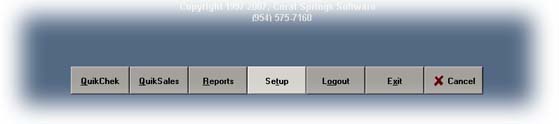
1. Login to Setup
2. Double Click on System
3. Click Lead/Member Editing
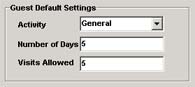
4. Fill in the Guest option boxes on the right
5. All Guests will receive the same Access to your facility
6. Select the Activity that you want them to be checked in for

7. Enter the number of days they will have access
8. Enter the number of visits they will be allowed.
To add a guest
1. Go to the Check-in Screen
2. Click Guest at the top of the screen
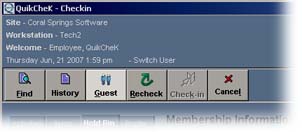
3. Click Add Guest
4. Fill out the guest form and click Save
Guest Reports
1. Use the Activity report to track Guest Entries
2. Go to Toolbox Reports - Select the Activity Report
3. Select Guests Only in the bottom left
1. Use the Weekly Usage Report to track Guest Usage
2. Go to Toolbox Reports - Select the Weekly Usage Report
3. When you run the report you will see how many Guests checked-in
within the date range you specify.
